Smart Home Settings UI
Introduction
This article will be a 2 parts series divided like this:
- Part 1: The user interface
- Part 2: Persist data with core data
Requirements
- Xcode 12 or greater
- MacOS Catalina or greater
- Swift 5.0 or greater
- iOS 14 or greater
Get started
- Open Xcode
- Create a new Xcode project
- Select single view app and click next
- Name your app (Mine will be SmartHomeSettings) and make sure the user interface is Swift UI and also include CoreData
- Last, click Finish.
Rename the ContentView filename and struct to SmartHomeSettings, and make sure you rename its reference in SceneDelegate
func scene(_ scene: UIScene, willConnectTo session: UISceneSession, options connectionOptions: UIScene.ConnectionOptions) {
    // Use this method to optionally configure and attach the UIWindow `window` to the provided UIWindowScene `scene`.
    // If using a storyboard, the `window` property will automatically be initialized and attached to the scene.
    // This delegate does not imply the connecting scene or session are new (see `application:configurationForConnectingSceneSession` instead).

    // Create the SwiftUI view that provides the window contents.
    let smartHomeSettings = SmartHomeSettings()

    // Use a UIHostingController as window root view controller.
    if let windowScene = scene as? UIWindowScene {
        let window = UIWindow(windowScene: windowScene)
        window.rootViewController = UIHostingController(rootView: smartHomeSettings)
        self.window = window
        window.makeKeyAndVisible()
    }
}
Change everywhere you see ContentView referenced to SmartHomeSettings.
Grid View
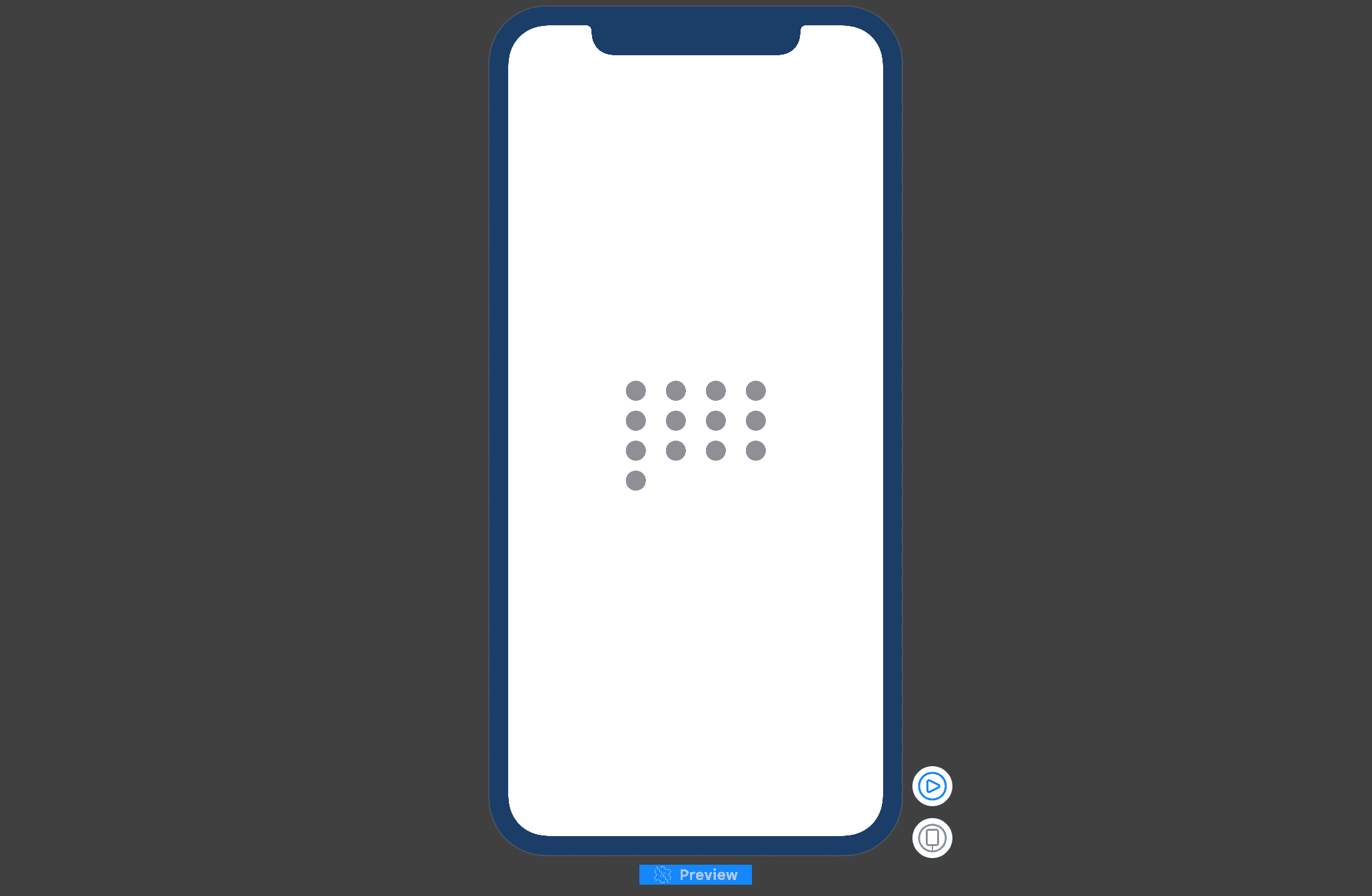
After making the above changes, the first thing to do is to create a folder named Views , and inside it add a swiftUI file named GridView. The gridView will represent the number of lights in a particular room or place.
Add the following properties at the top of the file:
 var numberOfLights:CGFloat = 13.0
 var numberOfColumn:CGFloat = 4.0
 var lightSize: CGFloat = 20
 var vSpacing: CGFloat = 10
 var hSpacing: CGFloat = 20
 var placeName = "Work"
Then in the body block, replace what’s there with the following:
let numberOfRows = Int(numberOfLights / numberOfColumn)
        let remainingRows = ceil(numberOfLights.truncatingRemainder(dividingBy: numberOfColumn))

        return Group{
            VStack(alignment: .leading, spacing: vSpacing) {
                ForEach(0..<numberOfRows){ i in
                    HStack( spacing: self.hSpacing) {
                        ForEach(0..<Int(self.numberOfColumn)){_ in
                            Circle()
                                .frame(width: self.lightSize, height: self.lightSize)
                                .foregroundColor(Color.gray)
                        }
                    }

                }
                HStack( spacing: hSpacing) {
                    ForEach(0..<Int(remainingRows)){_ in
                        Circle()
                            .frame(width: self.lightSize, height: self.lightSize)
                            .foregroundColor(Color.gray)
                    }
                }
            }
        }
That block of code creates a grid of circles.
Previews
Place View
In the same folder, create a file named PlaceView and add this at the top of the struct:
    var brightnessLevel: CGFloat = 0
    var isSelected  = false
    var numberOfLights:CGFloat = 13
    var numberOfColumn:CGFloat = 4.0
    var lightSize: CGFloat = 20
    var vSpacing: CGFloat = 10
    var hSpacing: CGFloat = 10
    var placeName = "Work"
    var lightColor = "neatRed"
Most of these properties are just duplicates of the ones that we have in GridView. You will see how they will be used shortly.
            HStack {
                Circle()
                    .foregroundColor(Color(lightColor)).frame(width: 30, height: 30)

                HStack(spacing: 30) {
                    VStack(alignment: .leading) {
                        Text("\(self.placeName)").fontWeight(.bold).foregroundColor(Color("bg"))
                        Text("\(Int(self.numberOfLights)) lights").font(.footnote).foregroundColor(Color(lightColor))

                        GridView(numberOfLights: self.numberOfLights, numberOfColumn: self.numberOfColumn, lightSize: self.lightSize, vSpacing: self.vSpacing, hSpacing: self.hSpacing, placeName: self.placeName)
                    }

                    VStack(spacing: -7) {
                        GeometryReader { gr in
                            Rectangle().offset(y: gr.size.height * (1 - self.brightnessLevel))
                                .foregroundColor(Color(self.lightColor))
                        }
                    }.frame(width: 10)
                        .background(Color(self.lightColor).opacity(0.2))
                        .cornerRadius(50)

                }.padding().modifier(Border(cornerRadius: 5, width: 1, color: isSelected ? Color(lightColor) : Color.gray.opacity(0.5)))
        }
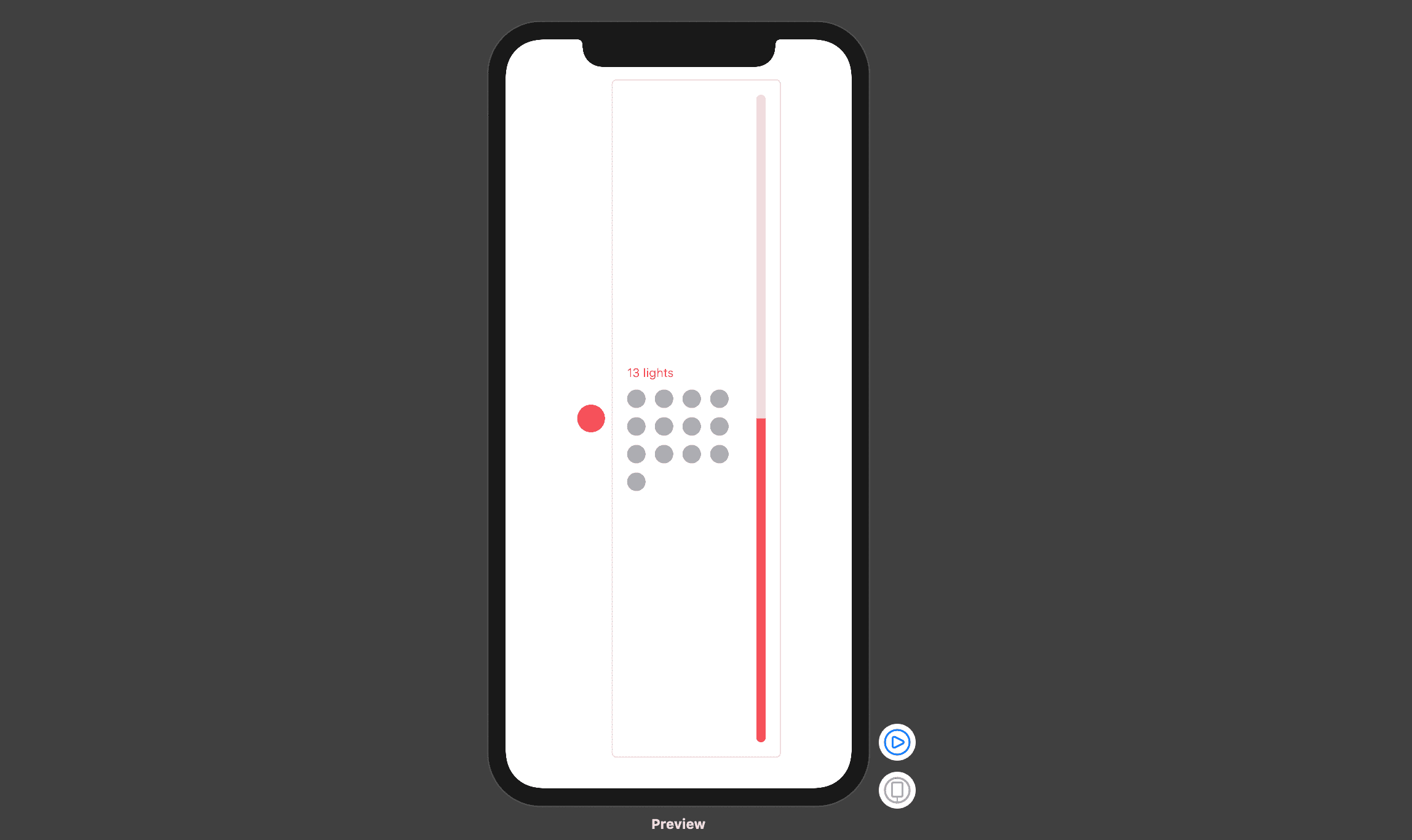
This block of code does the following things:
- Creates a circle aligned on the left.
- Creates
VStackcontainer that holds 2 Texts and the lights gridView. - Creates a progress bar that will reflect the brightness level of lights.
- And Wraps them into a HStack. Previews
SliderView
We will need to create a new swiftUI file named SliderView. It will be the control that we will use to adjust the brightness level. We will create it in such a way that it will be reused easily.
In SliderView struct, add these properties:
    @Binding var lightColor: String
    @State var offsetY: CGFloat = 0.0
    var onChange: ((_ value: CGFloat)->()) = {_ in }
    var sliderWidth:CGFloat = 80
All those properties, except the onChange , do not need any explanation, as for the onChange, it will be called every time the sliderView changes value by sliding the handle up or down, and the value will be a range between 0 and 1.
Now, in the body block replace everything in there with the following:
     GeometryReader { gr in
            VStack(spacing: -7) {
                ZStack() {
                    Rectangle().frame(width: 100, height: 3).foregroundColor(Color("bg"))
                    Rectangle().frame(width: 70, height: 15).cornerRadius(7.5).foregroundColor(Color("bg"))
                }.offset( y: self.offsetY)
                    .gesture(DragGesture().onChanged({ drag in
                        self.offsetY = min(max(drag.location.y, 0), gr.size.height - 7)
                        let value = 1 - self.offsetY / (gr.size.height - 7)
                        self.onChange(value)
                    }))

                Rectangle().frame(height: gr.size.height - 7).offset(y: self.offsetY)
                    .foregroundColor(Color(self.lightColor))
            }.frame(width: self.sliderWidth, height: gr.size.height, alignment: .bottom)
                .background(Color(self.lightColor).opacity(0.2))
                .cornerRadius(50)
        }
You will get an error that you can fix by adding this in the SliderView() call in SliderView_Previews
lightColor: .constant("neatRed")
The above block of code does the following:
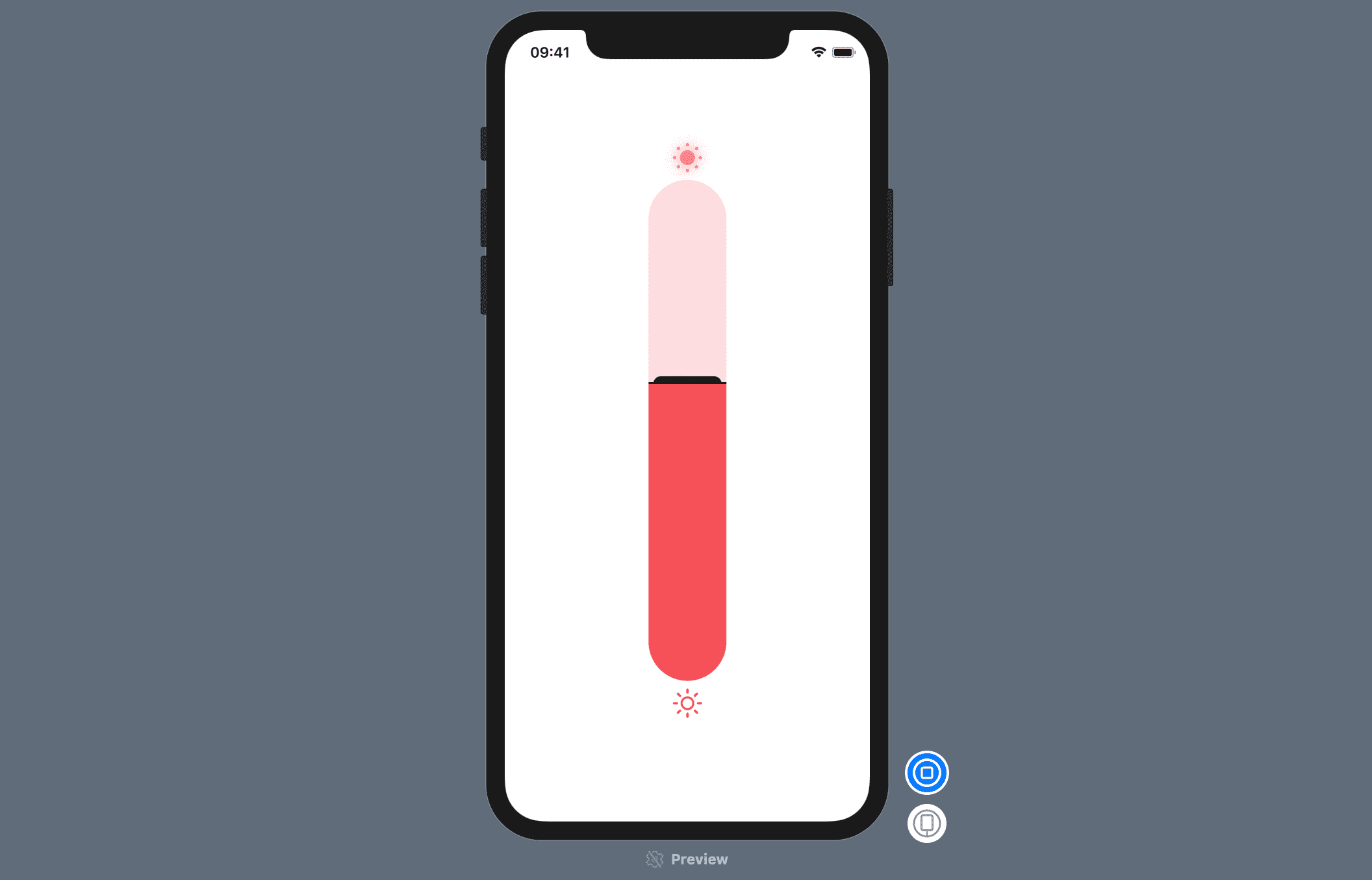
- Creates the handle by putting 2 rectangles in a
ZStack - Stacks Vertically the handle with a new rectangle that will indicate the progress.
- Surrounds everything with a
GeometryReadercontainer to make the control responsive on any screen size. - Adds a drag gesture on the handle to update the yOffset of the rectangle that represent the progress. And in the
onChangeblock, we will call theonChangeclosure with thepercentvalue.
Slider component
Create a folder named Components and inside it create a file named SliderComponent. Replace everything inside that file with the following:
import SwiftUI

struct SliderComponentt: View {
    @Binding var selectLightColor: String
    @Binding var brightnessLevel: CGFloat

    var body: some View {
        GeometryReader { gr in
            VStack {
                Image(systemName: "sun.min.fill")
                    .resizable()
                    .frame(width: 30, height: 30)
                    .foregroundColor(Color(self.selectLightColor))
                    .shadow(color: Color(self.selectLightColor), radius: 7, x: 0, y: 0)
                    .opacity(0.2 + Double(self.brightnessLevel))

                SliderView(lightColor: self.$selectLightColor, onChange: { value in
                    self.brightnessLevel = value
                })
                    .frame(height: gr.size.height * 0.7)
                Image(systemName: "sun.max")
                    .resizable()
                    .frame(width: 30, height: 30)
                    .foregroundColor(Color(self.selectLightColor))
            }
        }
    }
}

struct SliderComponentt_Previews: PreviewProvider {
    static var previews: some View {
        SliderComponentt(selectLightColor: .constant("neatRed"), brightnessLevel: .constant(0.5))
    }
}
That block of code is pretty simple. It just creates the following component:
Create Places List Component
Before creating this component, create a new folder named Models and inside it add
a file named Place. Add the following code inside the file:
import SwiftUI


struct Place:  Hashable, Identifiable{

    var id = UUID()
    let name: String
    let numberOfLights: Int
    let lightColor: String
    let brightnessLevel: CGFloat

    init(name: String = "", numberOfLights: Int = 0, lightColor: String = "", brightnessLevel: CGFloat = 0) {
        self.name = name
        self.numberOfLights = numberOfLights
        self.lightColor = lightColor
        self.brightnessLevel = brightnessLevel
    }


    static func getDummyData() -> [Place] {
        [
            Place(name: "Work", numberOfLights: 5, lightColor: "brightGreen", brightnessLevel: 0.7),
            Place(name: "Floor", numberOfLights: 11, lightColor: "heavenBlue", brightnessLevel: 0.2),
            Place(name: "Kitchen", numberOfLights: 8, lightColor: "justPurple", brightnessLevel: 0.4),
            Place(name: "Bedroom", numberOfLights: 15, lightColor: "neatRed", brightnessLevel: 0.8),
            Place(name: "Living Room", numberOfLights: 17, lightColor: "notYellow", brightnessLevel: 0.5)
        ]
    }

}
The above code just creates some dummy data that we can use to populate the place list view.
Create a new file in the component folder named PlacesListComponent and put the following code inside:
import SwiftUI

struct PlacesListComponent: View {

    @Binding var brightnessLevel: CGFloat
    var places: [Place] = Place.getDummyData()
    @Binding var selectLightColor: String
    @Binding var selectedPlace: Place

    var body: some View {
        ScrollView( showsIndicators: false) {
            ForEach(places, id: \.id){ place in
                Button(action: {
                    withAnimation{
                        self.selectLightColor = place.lightColor
                        self.selectedPlace = place
                    }
                }) {
                    PlaceView(brightnessLevel: self.selectedPlace.id == place.id ? self.brightnessLevel : CGFloat(0.5), isSelected: self.selectedPlace.id == place.id ,numberOfLights: CGFloat(place.numberOfLights),placeName: place.name , lightColor: place.lightColor)
                }
            }.padding(.horizontal)
        }.onAppear{
            self.selectLightColor = self.places.first?.lightColor ?? "neatRed"
            self.selectedPlace = self.places.first ?? Place()
        }
    }
}

struct PlacesListComponent_Previews: PreviewProvider {
    static var previews: some View {
        PlacesListComponent(brightnessLevel: .constant(0.5), selectLightColor: .constant("neatRed"), selectedPlace: .constant(Place.getDummyData()[0]))
    }
}
The above block of code does the following:
- Iterates through the places array and for each place, create a button with
PlaceViewas content. The button action will handle the selection and deselection of the placeView. - Set the first item in the array selected in the
onAppearblock. - Then wraps everything in a
scrollView.
Putting everything together
Now, open the SmartHomeSettings file and put these properties at the top:
  @State var brightnessLevel: CGFloat = 0.9
    private let places = Place.getDummyData()
    @State var selectLightColor = "justPurple"
    @State var selectedPlace = Place()
    @State var placeName: String  = ""
    @State var numberOfLights: String  = ""
Don’t worry we’ve already dealt with most of those properties.
Replace what’s in the body with the following:
NavigationView {
                HStack {
                    PlacesListComponent(brightnessLevel: self.$brightnessLevel, places: self.places, selectLightColor: self.$selectLightColor, selectedPlace: self.$selectedPlace)
                    SliderComponentt(selectLightColor: self.$selectLightColor, brightnessLevel: self.$brightnessLevel)

                }.navigationBarItems(leading: Button(action: {
                }) {
                    Image(systemName: "arrow.left").resizable().modifier(NavIconStyle())
                }, trailing: trailingButton())

        }
You will get an error because there’s no trailingButton() method. Add the following in the body block to fix the error:
    private func trailingButton() -> some View{
        return Button(action: {

                print("Add new place")

        }) {
            Image(systemName: "plus")
                .resizable()
                .modifier(NavIconStyle())
        }
    }
If you want to see the preview in dark mode, add the following modifier to SmartHomeSettings call in the SmartHomeSettings_Previews:
.environment(\.colorScheme, .dark)
That’s it for the first part. Stay tuned for the second part. Subscribe for more.